
Your WhatsApp profile is what customers see when they tap your business name in WhatsApp. Zlotworks keeps one profile for your business and sends it to every WhatsApp number you've connected.
Open the profile
- Go to Settings → General.
- On the WhatsApp tile, click Manage WhatsApp. The Profile tab opens.
If no number is connected yet, you'll see "Connect a WhatsApp number to edit its profile". The first time you open it, the fields show what your number already has on WhatsApp. Nothing changes until you click Save.
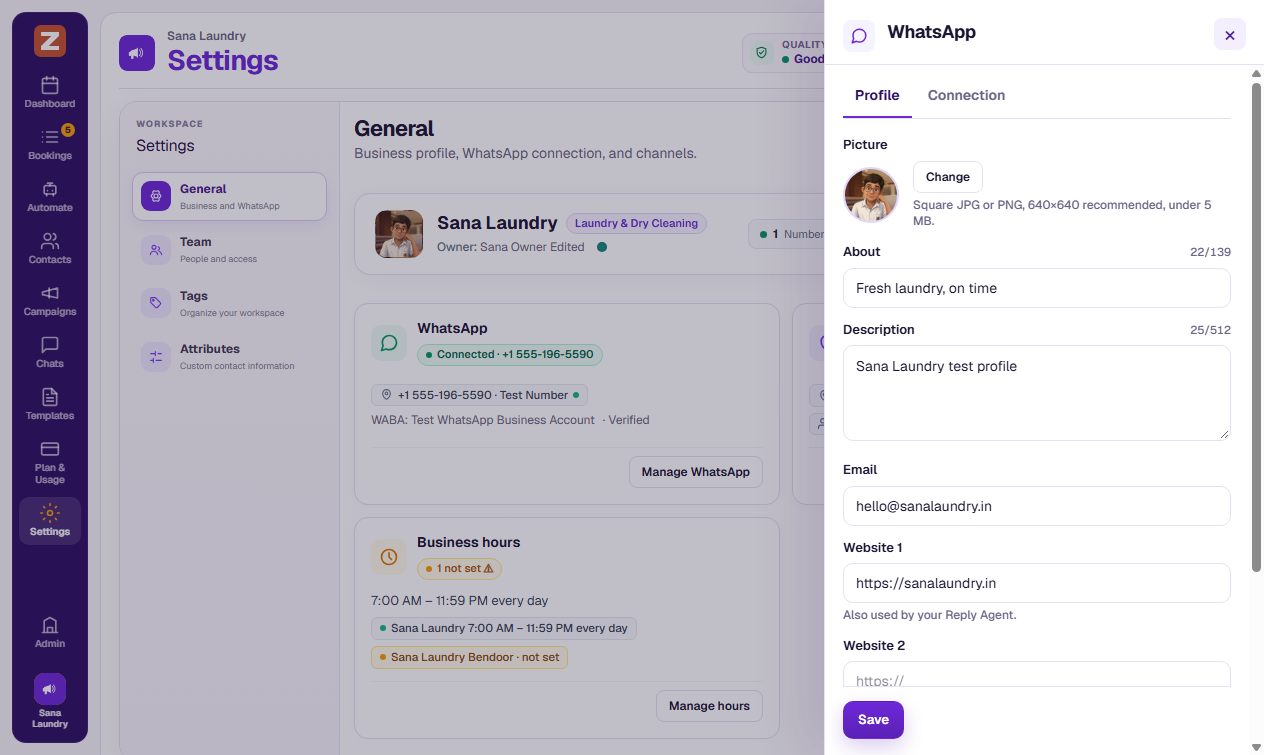
Fields
| Field | Limit | Notes |
|---|---|---|
| Picture | JPG or PNG, under 5 MB | Square, 640 × 640 recommended. Your logo works best. |
| About | 139 characters | A short line, e.g. "Fresh laundry, on time". |
| Description | 512 characters | What you do and the areas you serve. |
| 128 characters | ||
| Website 1 and Website 2 | Up to 256 characters each | Must start with http:// or https://. Website 1 is also used by your Reply Agent. |
| WhatsApp category | WhatsApp's list | E.g. Beauty, spa & salon or Medical & health. |
The display name isn't part of the profile — each number has its own, and Meta reviews it. See Choose or change your display name.
Address
The address comes from your channels, not from this screen: a Location number shows that location's address, and a Team number shows your Primary location's address. To change it, edit the location's Address in Settings → General → Channels (see Your channels and the Primary location). The new address is sent to WhatsApp the next time you change and save the profile. If a location has no address, the number keeps whatever address it already has on WhatsApp.
Save
Click Save. Zlotworks saves the profile, then updates every number — "Saved. Updated on all N numbers. It may take a while to appear for customers."
If some numbers fail, you'll see which one and why. Click Retry to try again for just those numbers — your changes are already saved in Zlotworks.
| Reason shown | What to do |
|---|---|
| WhatsApp access has expired for this number. Reconnect WhatsApp. | Reconnect in Manage WhatsApp → Connection — see Disconnect or reconnect WhatsApp. |
| WhatsApp can't find this number on your account. Detach it and connect it again. | Detach and reconnect the number in Channels — see Connect a number to a channel. |
| WhatsApp didn't respond, or WhatsApp is busy right now | Click Retry (wait a few minutes if it's busy). |
| WhatsApp didn't accept the update for this number | Click Retry. If it keeps failing, contact Zlotworks support. |
Change the picture
Click Change and choose a JPG or PNG under 5 MB. The picture is sent to every number straight away. You can replace the picture, but not remove it.
Save any text changes first — changing the picture reloads the form.
When WhatsApp shows something different
If someone changed a number's profile outside Zlotworks — for example in WhatsApp Manager — you'll see that the number is different on WhatsApp:
- Use WhatsApp's version — copies that number's About, Description, Email, Websites and category into Zlotworks.
- Keep ours — keeps your Zlotworks profile. It's sent to that number the next time you change and save the profile.
The picture isn't compared. Make changes in Zlotworks only: saving here overwrites changes made directly in WhatsApp Manager.