
Why you need this
Meta charges for some WhatsApp messages — mainly templates (campaigns, reminders, confirmations sent outside a 24-hour chat window). In addition, Meta includes 1,000 free service replies (customer-initiated conversations) per number each month; any service replies beyond that are charged at Meta's per-message rate. These charges go straight from Meta to your card. They are separate from your Zlotworks plan; Zlotworks does not add any margin to them.
Add it straight after connecting. Until you do, Meta can't bill for messages, and campaigns and other template messages won't be delivered. Zlotworks can't always tell that a card is missing, so don't wait for a warning.
Steps
- Open WhatsApp Manager:
business.facebook.com/wa/manage/home/and pick your business. - On Overview, click Add payment method.
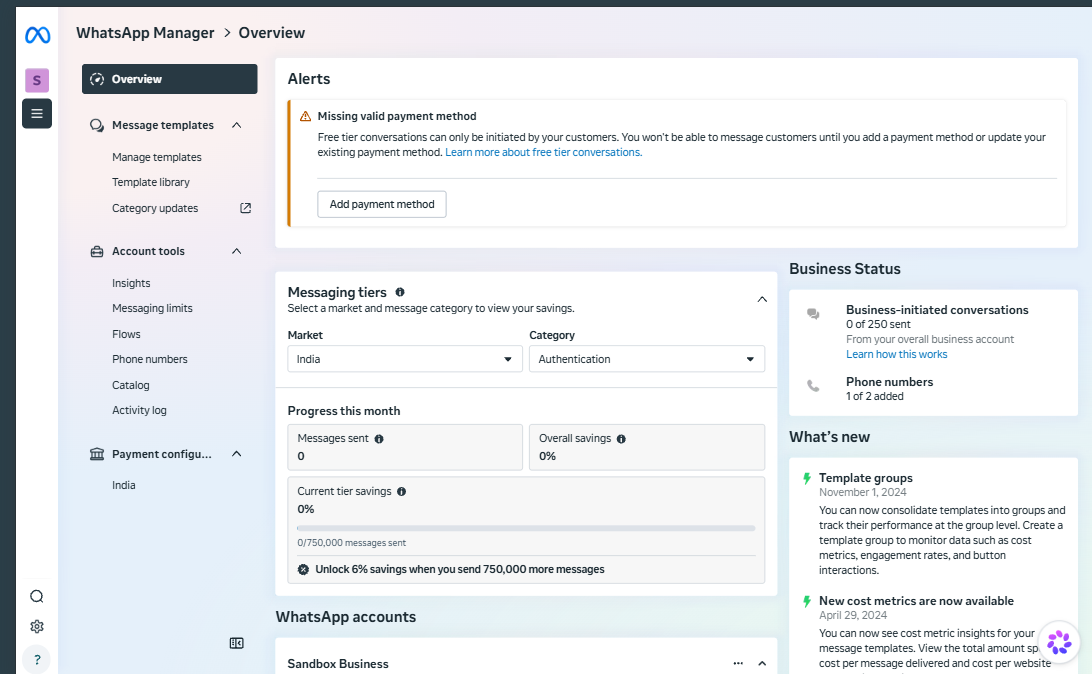
- Pick your WhatsApp Business account (the one connected to Zlotworks).
- Check country and currency — for India choose INR. Choose carefully — changing currency later is not simple.
- Enter your card (credit or debit). For India, you can add your GST number so it appears on Meta's invoices.
- Complete your bank's OTP check and click Save.
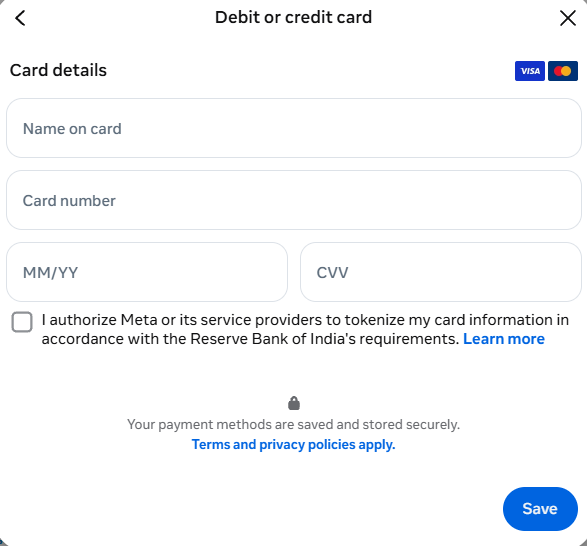
Another way: Meta Business Suite → Settings → Billing and payments (or Business Settings → Payments) → Add payment method, then connect it to your WhatsApp account.
Check it worked
- In WhatsApp Manager, Overview shows your payment method.
- In Zlotworks, open Chats, open a chat with your own number and use Send a template.
Common card problems
| Message in Meta | Try this |
|---|---|
| Card hasn't been verified | Retry and enter the OTP from your bank; make sure international/online payments are on for the card |
| Couldn't save payment method — used on too many accounts | Use a different card |
| Something went wrong / Request not completed | Ask your bank if the card is blocked for Meta; try another card or try again later |
Invoices
Meta sends invoices and receipts for WhatsApp charges. See them in Meta Business Suite → Billing and payments.