
Read Before you connect WhatsApp first.
Steps in Zlotworks
-
Log in to Zlotworks. On the Dashboard, the Getting started list has a Connect button that opens Meta's window straight away. The Connect WhatsApp button on pages that need WhatsApp — such as Bots, the Reply Agent or Posters — does the same.
You can also go to Settings → General, click Manage WhatsApp on the WhatsApp tile, open the Connection tab and click Connect WhatsApp. Only the account owner sees these buttons.
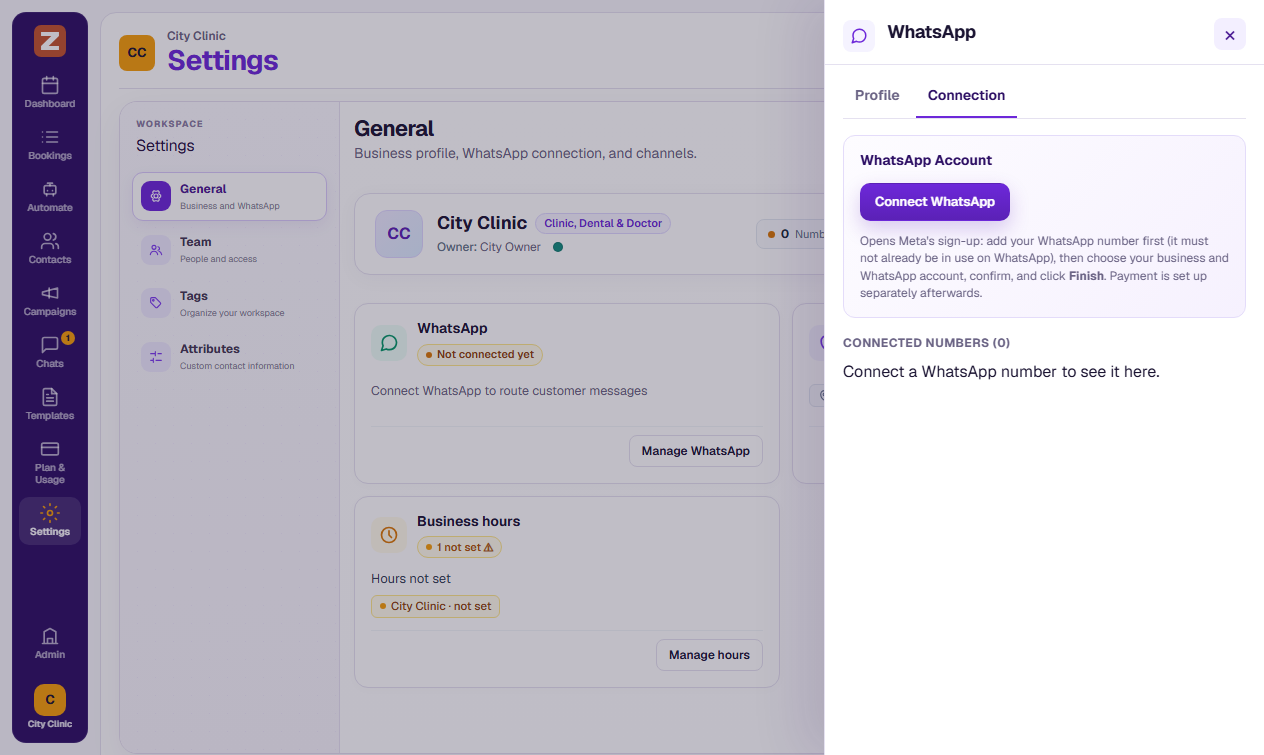
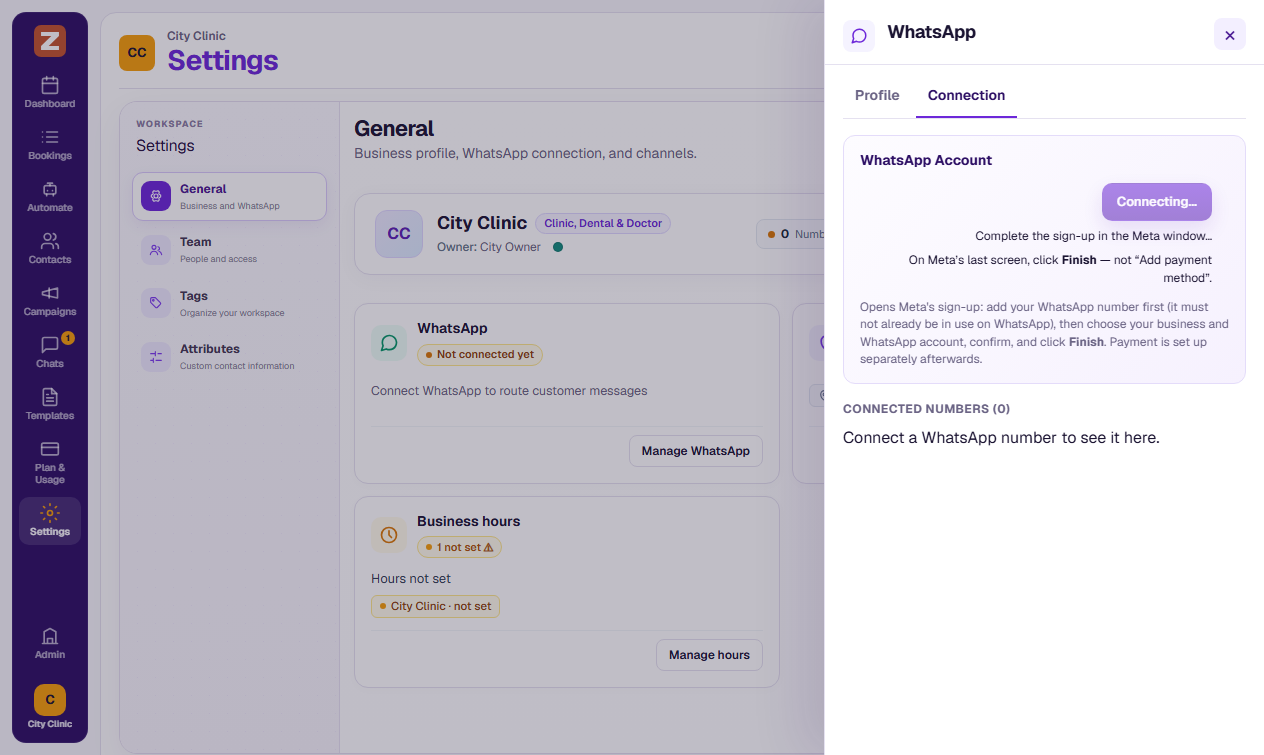
- A Meta window opens. If nothing opens, allow pop-ups for Zlotworks in your browser and click again.
- Keep the Zlotworks tab open while you finish in the Meta window.
Steps in the Meta window
Meta changes the wording of these screens from time to time. If a screen looks different, look for the same choice.
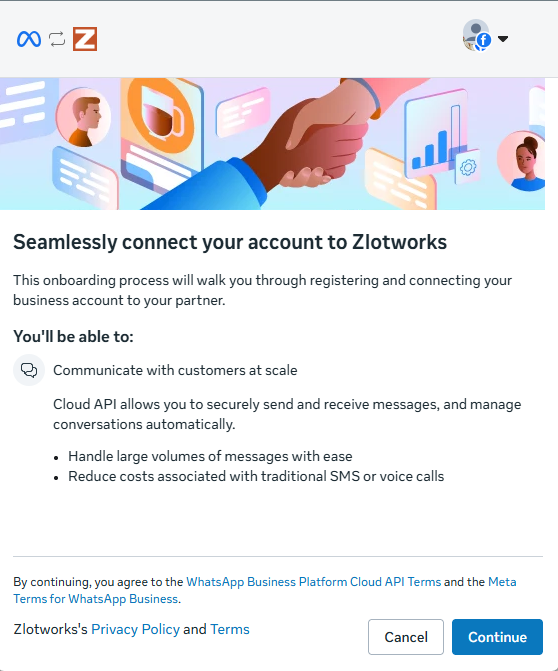
1. Log in and get started Log in with Facebook and click Continue.
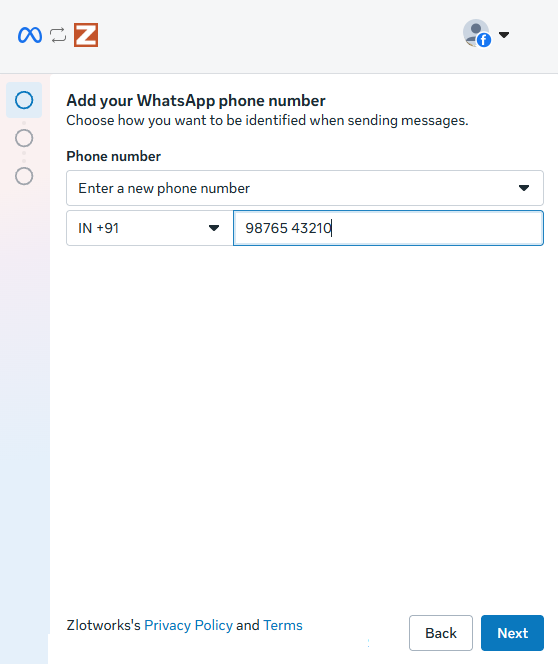
2. Add your phone number Enter your WhatsApp phone number. Meta sends a 6-digit verification code by SMS or phone call to confirm that you own the number.
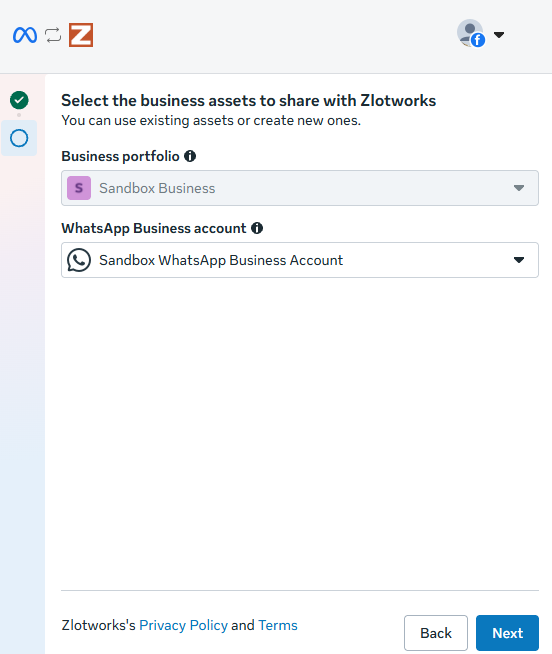
3. Select your business portfolio and WhatsApp Business account Select your business portfolio and WhatsApp Business account to connect with Zlotworks. If you don't have one, choose to create new assets. If creating new assets, Meta also asks for your business name, category and website (see Choose or change your display name).
- First time: choose Create a WhatsApp Business account.
- Used WhatsApp API with another provider before? Contact Zlotworks support before continuing — that account may still be tied to the old provider's billing.
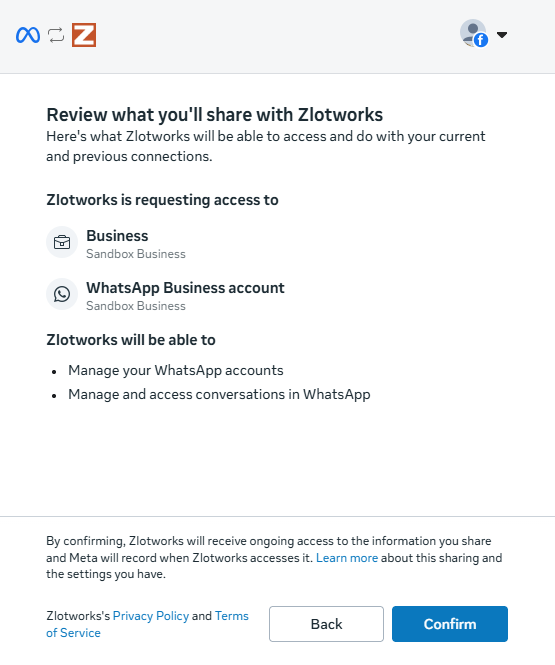
4. Review and confirm Meta shows what you're sharing with Zlotworks (send and receive messages, manage templates). Click Confirm.
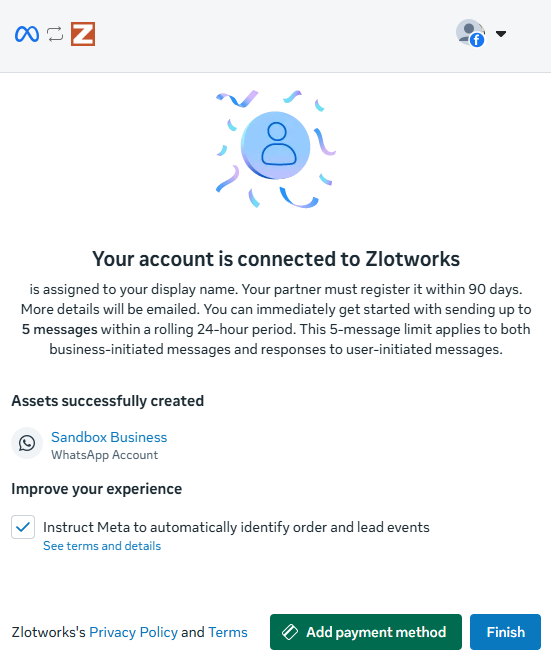
5. Finish On the last screen, click Finish. The window closes by itself. Don't click Add payment method on this screen — it leaves the window and cancels the connection. You add the payment method afterwards.
Back in Zlotworks
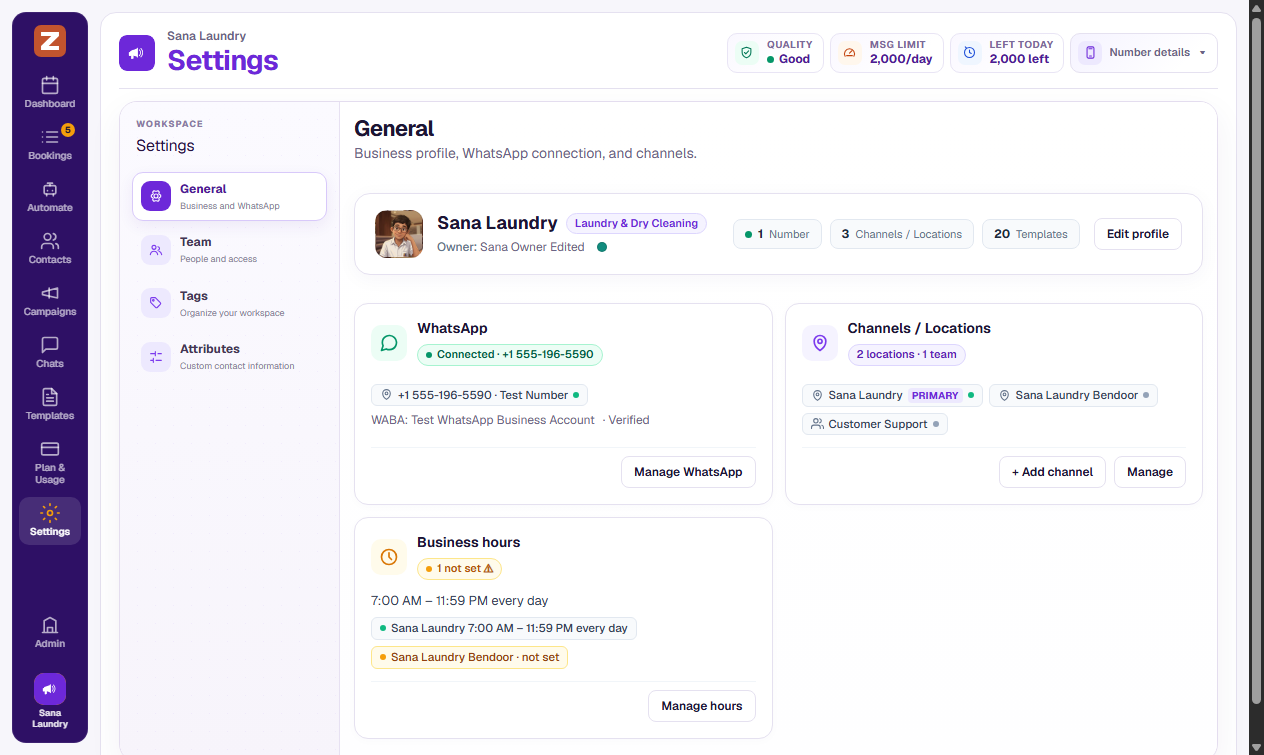
Zlotworks shows "Finishing with Meta…", then the page reloads. The WhatsApp tile now shows Connected with your number.
Send a "Hi" to your business number from another phone. It should appear in Chats.
After connecting
- Add a payment method in Meta — Meta won't deliver campaigns or other template messages until you do.
- Optional: Verify your business to raise your limits.
If something goes wrong
See Troubleshooting. Common ones:
- "Sign-up was closed before finishing — nothing was connected." Start again; nothing was saved.
- "Meta finished but didn't send the result to Zlotworks, so nothing was saved." Click Connect WhatsApp again. Your WhatsApp account is already set up, so it's quicker the second time.
- "That WhatsApp number is already used by your "…" location." Each channel needs its own number.
- "That WhatsApp number is already connected to a different Zlotworks account." Use another number, or contact Zlotworks support.
- "This WhatsApp account is connected to another Zlotworks business." Contact Zlotworks support if you think this is wrong.
- "Connecting an existing WhatsApp Business app number is not supported yet." Use a number that isn't on WhatsApp.